How to use
Talk to anyone, each in your own language
Sponkly is a video meeting where everyone speaks their own language. What you say is translated a moment after each sentence — the others read it as subtitles and hear it in a voice. Here is everything you need, step by step.
Create your account
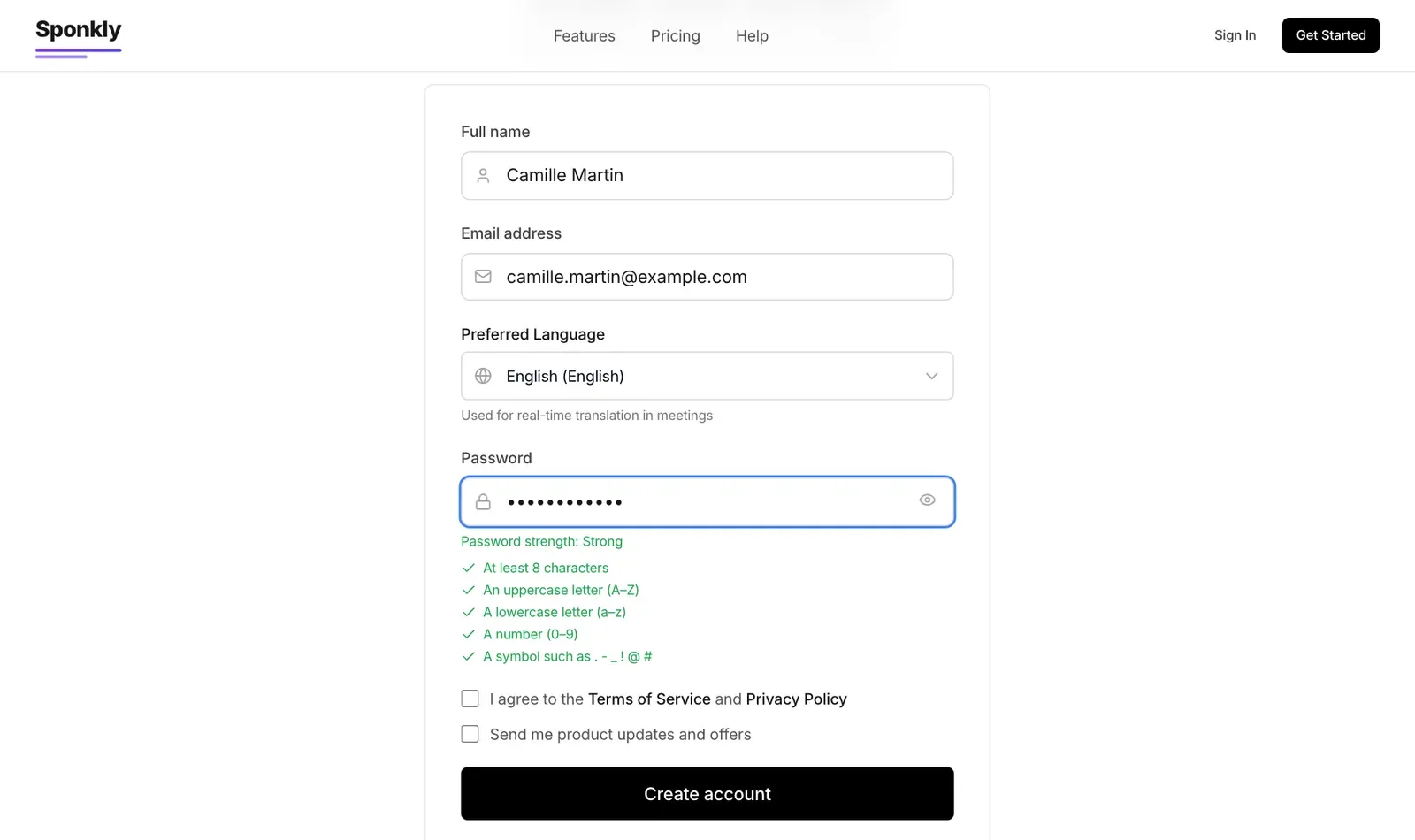
Go to Get Started and fill in four things:
- Name and email.
- Your language — the language you speak. Others will hear you translated from it, and you will hear them translated into it.
- A password — the list under the field turns green as each rule is met (8+ characters, upper and lower case, a number, a symbol).
We email you a 6-digit code; enter it and your account is ready.
Start or schedule a meeting
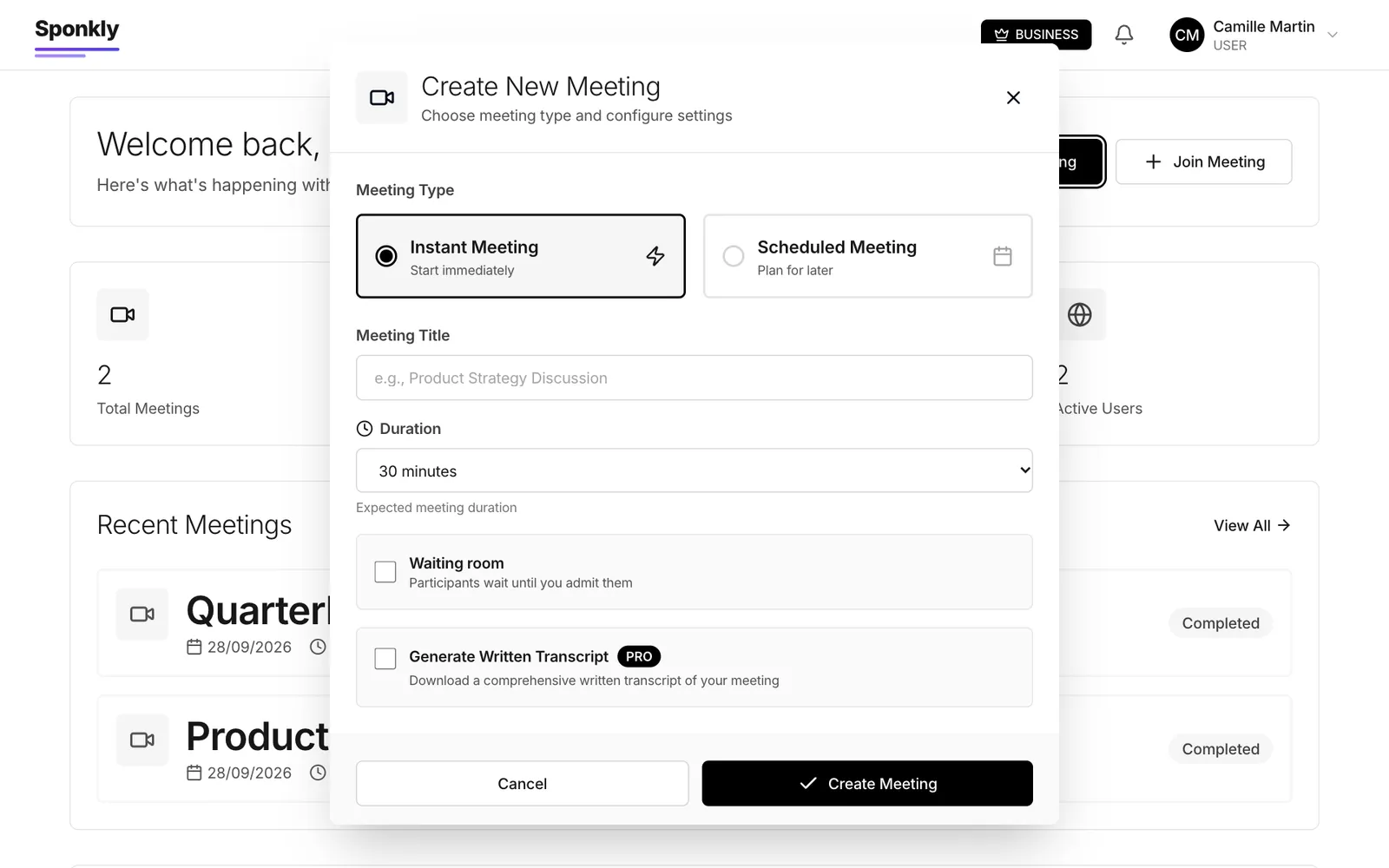
On your dashboard press Start Meeting:
- Instant starts now; Scheduled picks a date and time and emails an invitation.
- Duration is how long the meeting is planned for. The longest meeting depends on your plan (see the table below).
- Waiting room: guests wait until you let them in.
- Generate written transcript (Business and Enterprise): keep a record of who said what.
You get a link, a code and a password. Send the link — it already contains the password, so guests just click it. Every meeting has a password.
Choose your language and voice
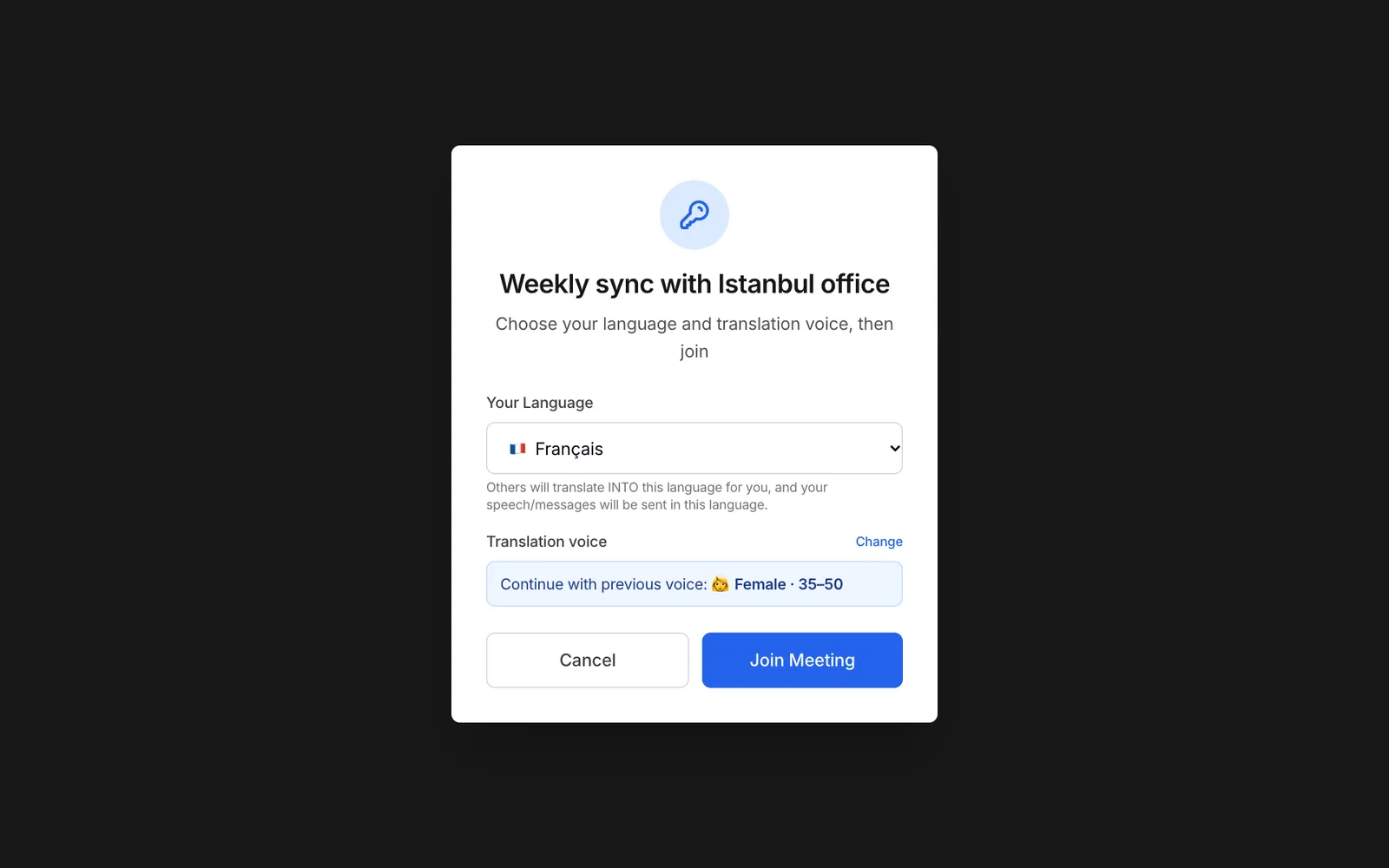
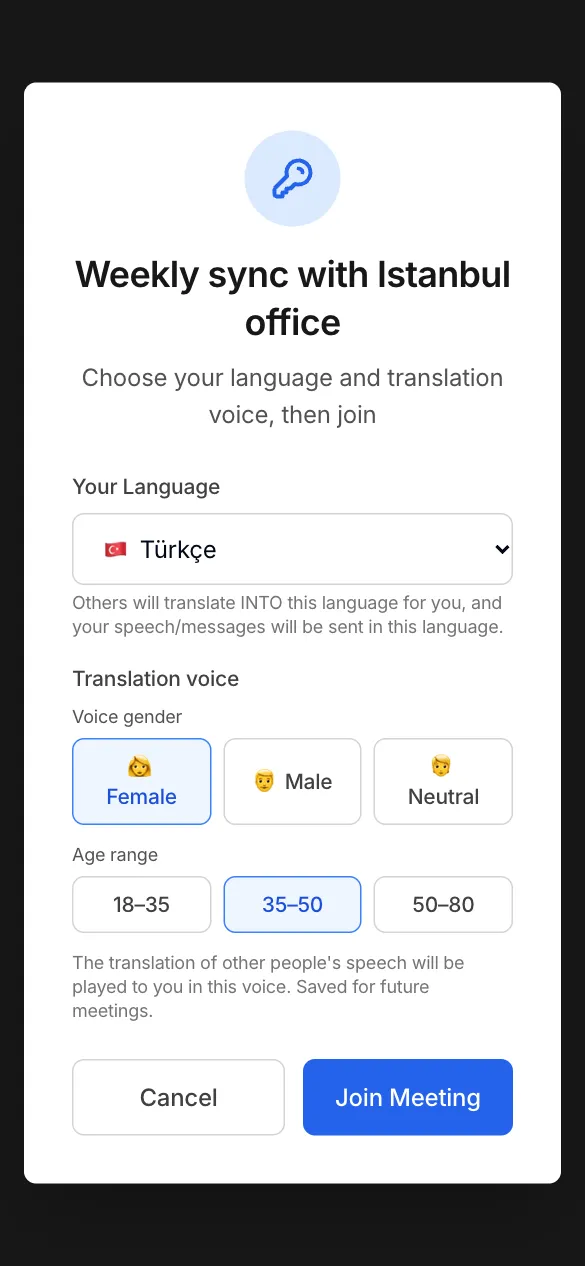
Before you enter a meeting you choose two things. Both are remembered next time.
- Your language. Speak in it; everything the others say reaches you in it — as subtitles and as speech. A Turkish speaker and a French speaker each just use their own language.
- Your translated voice. When the others hear your words in their language, they hear them in this voice. Pick one that matches you (female, male or neutral; age range).
In the meeting: just talk
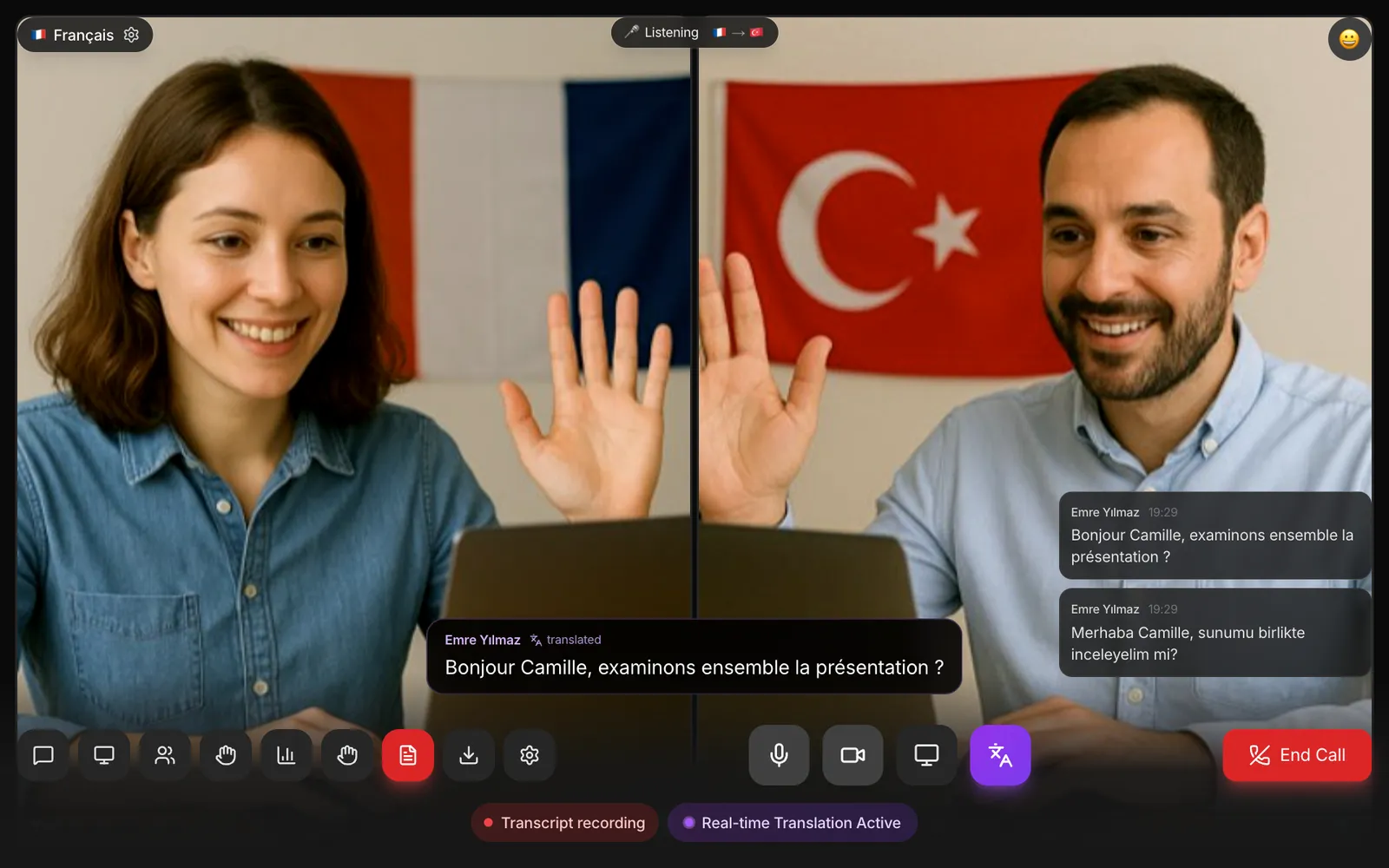
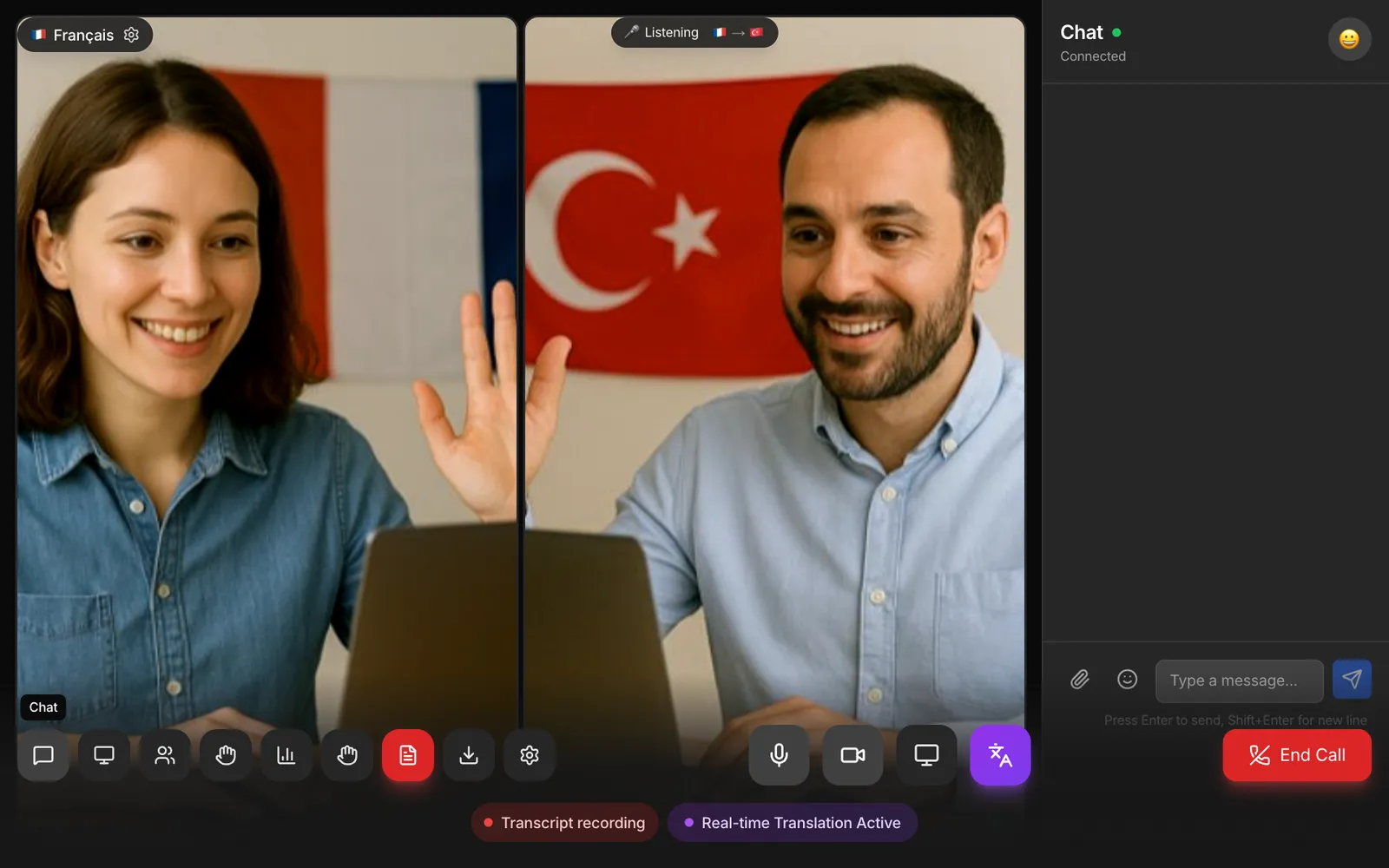
Talk normally and finish your sentence — the translation follows a moment after it. The person you talk to sees a subtitle with your name and hears it in their language. The last few lines stay on the right of the screen.
A small pill at the bottom tells you what is on: Real-time Translation Active, and Transcript recording when the meeting is being written down.
Tip: speak in full sentences and pause briefly at the end — it is translated as soon as you pause. With several people on camera, video quality adjusts by itself so everyone stays smooth.
Chat and send documents
Open Chat to write to everyone. Use the paperclip to send a document, a spreadsheet or an image (up to 50 MB) — everyone in the meeting can download it.
Transcripts: who said what, in every language
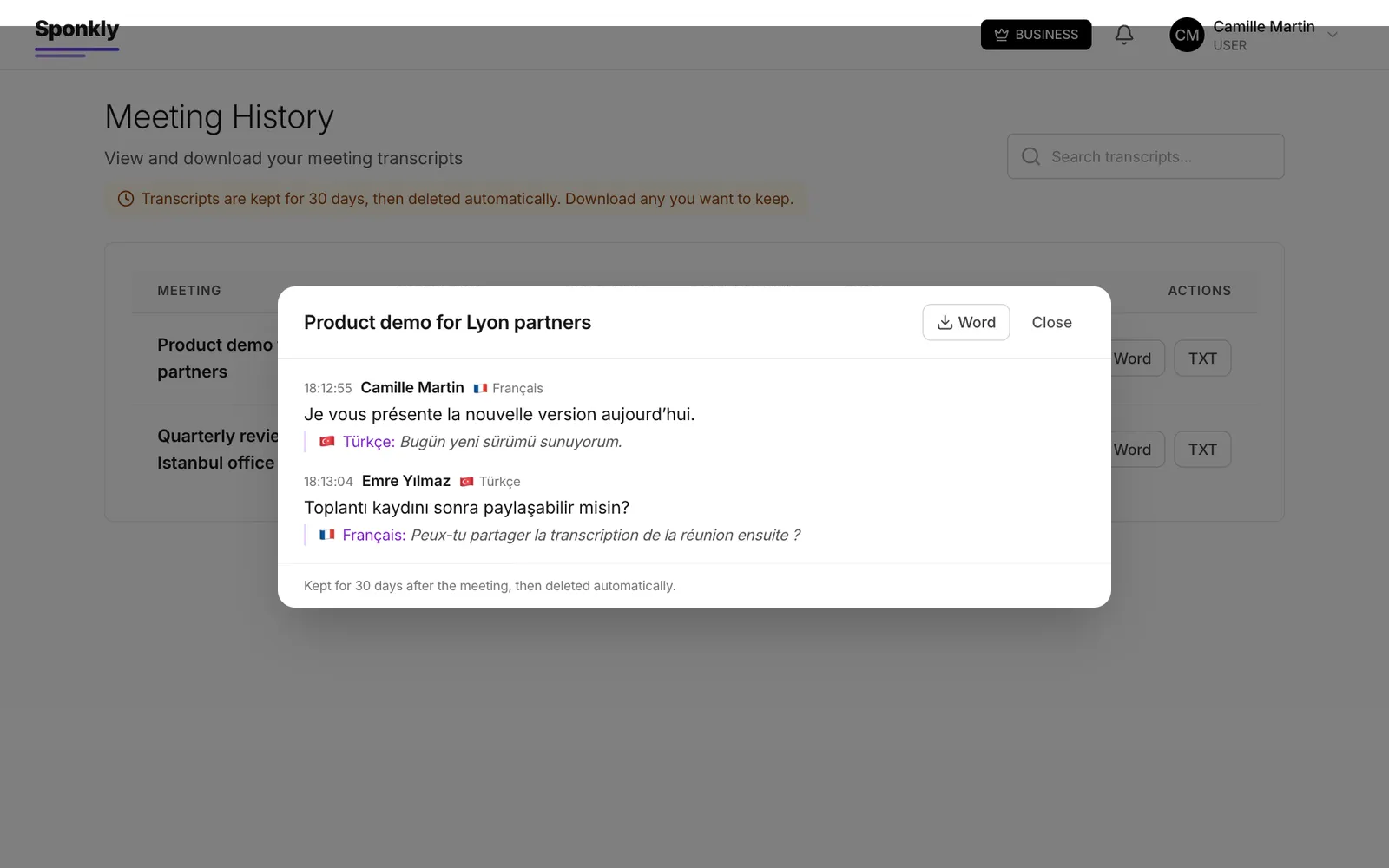
On Business and Enterprise plans the meeting can be written down: every sentence, who said it, in which language, and what each listener heard it as.
- It starts by itself when Auto-generate transcripts is on in your settings. The host can stop it at any time with the Transcript button; while it is off, nothing is kept.
- Download it as Word (opens anywhere and saves to PDF in one step) or plain text — from the meeting, from Meetings, or from History.
- Transcripts are kept for 30 days, then deleted automatically.
Your meetings, any time
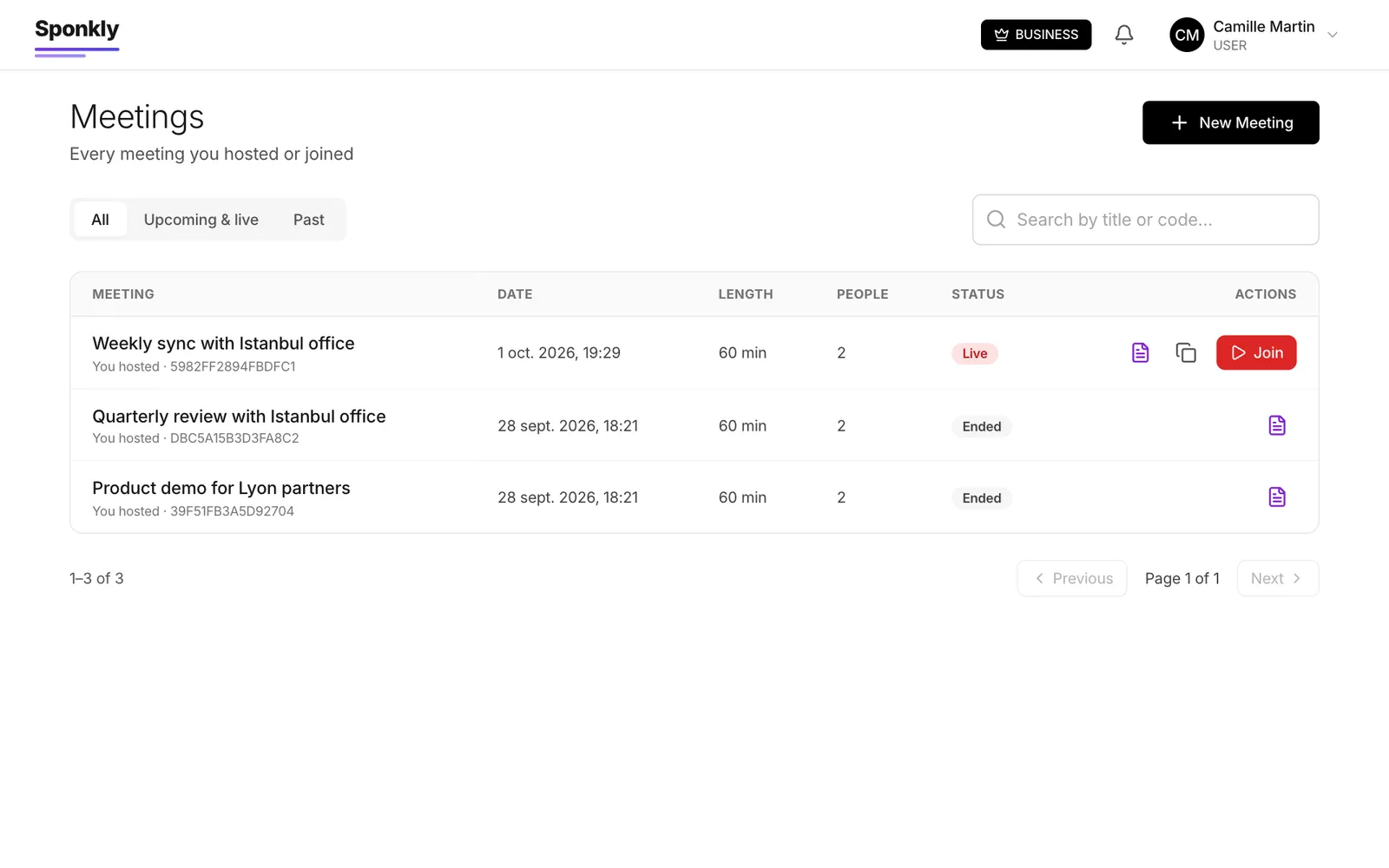
Meetings lists everything you hosted or joined — search by name or code, switch between upcoming and past. A transcript icon appears where one can be downloaded.
How many people, how long
What each plan allows per meeting. Prices and everything else are on the Pricing page.
| Plan | People per meeting | Longest meeting | Transcripts |
|---|---|---|---|
| Loading plans… | |||
On your phone
Open the meeting link on your phone — in the browser or in the Sponkly app — and the same steps apply: choose your language and voice, join, and talk. Using the same account on a second device? Sponkly asks whether to move the meeting there, so one person is never in the room twice.
Ready for your first meeting?
It takes about a minute to sign up and start.
Get started free